Google Workspace migration without downtime: a step-by-step guide
The 8-step order of operations we follow so nobody loses an email, a file or a working day when moving to Google Workspace.

Email migrations fail in predictable ways. Messages bounce during the DNS switch. Shared files lose their permissions. People spend a week hunting for old attachments, and someone always discovers a forgotten alias that a key client was still using.
None of these are bad luck. They happen when steps are done in the wrong order. This guide covers the order we follow when moving a business to Google Workspace, whether you're coming from cPanel or other hosting email, Zoho Mail, Microsoft 365 or a set of personal Gmail accounts.
Before you start: what you'll need
Admin access to your domain's DNS, at GoDaddy, Hostinger, Cloudflare or wherever your domain is managed.
Admin access to the old email system, or the passwords for each mailbox if it's basic IMAP email.
A list of users and the Google Workspace plan each one needs.
A quiet window of a few hours for the cut-over, usually an evening or weekend.
Which migration tool to use
Google provides free migration tools; the right one depends on where your data is now:
Moving from | Google tool to use |
|---|---|
Microsoft 365 / Exchange Online | Data import tool in the Google Admin console (email, OneDrive files, Teams chat) |
cPanel, Zoho Mail or any IMAP email | Data import tool, IMAP option |
Another Google Workspace account | Data import tool |
Local Outlook PST files | Google Workspace Migration for Microsoft Outlook (GWMMO) |
On-premise Exchange server | Google Workspace Migration for Microsoft Exchange (GWMME) |
For large or complex moves, such as many shared drives or years of archives, third-party tools or a migration partner can save time. For most small and mid-sized businesses, Google's own tools are enough.
The 8-step plan
1. Inventory everything before you move
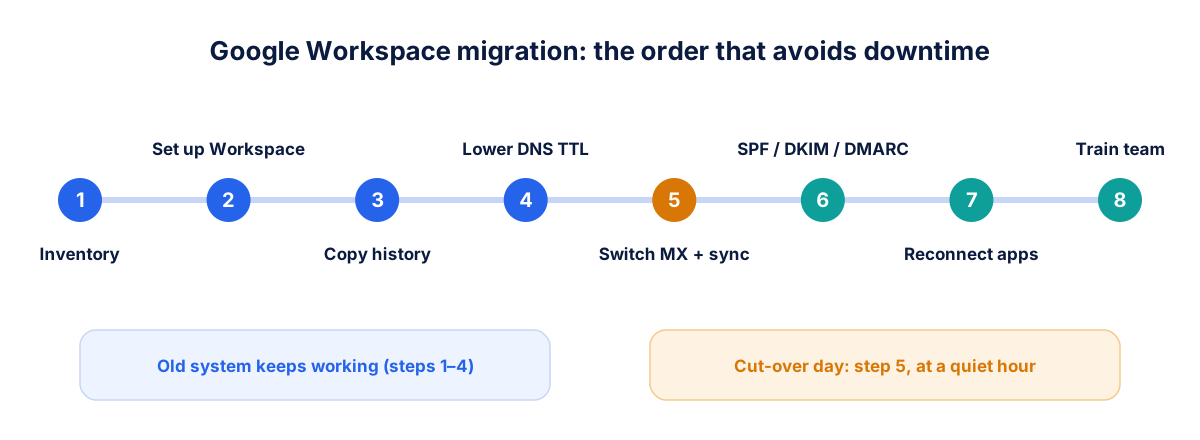
List every mailbox, alias, shared inbox (sales@, support@, accounts@) and distribution group. Note which are actively used and who owns each. Do the same for shared folders and drives.
A migration is the best moment to clean up. Retire accounts for people who have left, and merge duplicate shared inboxes. Every mailbox you don't migrate is time and licence cost saved.
2. Choose plans and set up the destination first
Create users, groups and shared drives in Google Workspace while the old system keeps running. Verify your domain in the Admin console. Don't change your MX records yet, as mail must keep flowing to the old system until cut-over day.
Map old addresses to new ones exactly, including aliases. A forgotten alias is the most common cause of "I never got your email" complaints after a migration.
3. Copy history in the background
Start migrating older email and files while people keep working in the old system. This is the slow part: large mailboxes with years of attachments can take days. Doing it early keeps cut-over day short and calm.
4. Prepare for cut-over
A day or two before the switch, lower the TTL (time to live) on your MX records to five minutes or so. That makes the change take effect quickly when you make it. Tell your team the date, what will change and what they need to do on the first morning.
5. Switch mail routing, then sync the gap
At a quiet hour, replace the old MX records with Google's. New mail starts arriving in Google Workspace within minutes to a few hours, depending on DNS caches.
Then run a final delta sync to copy anything that landed in the old mailboxes during the change. Keep the old system readable, not deleted, for two to four weeks in case anything was missed.
6. Lock in deliverability and security
Set up the three records that prove your email is genuine:
SPF lists the servers allowed to send mail for your domain.
DKIM adds a digital signature to each outgoing message; generate the key in the Admin console.
DMARC tells receiving servers what to do with mail that fails SPF or DKIM. Start with a monitoring policy, then tighten it.
Without them, your mail is more likely to land in spam, and anyone can send email that looks like it comes from you. Also turn on 2-step verification for every user, starting with admins.
7. Reconnect everything else
Email is connected to more than people. Update the SMTP settings on your website contact forms, CRM, invoicing software, printers and scanners that send email. Re-share calendars and check that shared drive permissions came across correctly.
8. Train for the first week
A 30-minute session on Gmail search, labels, shared drives and calendar sharing removes most of the support tickets that follow a migration. Share a one-page cheat sheet and name one person people can ask.
Common mistakes to avoid
Switching MX records before the destination is ready, which bounces mail.
Forgetting aliases and group addresses, so clients' emails silently disappear.
Deleting the old system too early: keep it for at least two weeks.
Skipping SPF, DKIM and DMARC, so your first week of mail lands in spam.
Migrating everything, including ten years of newsletters. Agree a cut-off with your team.
How long does a Google Workspace migration take?
For a team of 10–50 people with normal mailbox sizes, planning and setup take a few days and the background copy takes one to a few days. The cut-over itself takes a few hours. Big archives and many shared drives take longer, which is why the background copy starts early.
Need a hand?
Optimantix is a Google Cloud partner. We plan and run Google Workspace setups and migrations for Indian businesses, including DNS, security and team training, so work carries on as normal. See Google Workspace services, or compare options in Zoho One vs Google Workspace.
FAQ
Will I lose emails during the migration? Not if you copy history first, switch MX records at a quiet time and run a final sync afterwards. Keep the old system readable for a few weeks as a safety net.
Can I migrate from cPanel or Hostinger email to Google Workspace? Yes. Use the IMAP option in Google's data import tool, with each mailbox's server details and password.
Do I need to change my email addresses? No. You keep your domain and addresses; only the system behind them changes.
What is the MX record and why does it matter? The MX record tells the internet which server receives your domain's email. Changing it to Google's servers is the moment your mail starts arriving in Google Workspace.